Creddy tracks the benefits on your cards, so the first job is getting your cards into the wallet.
You can add them one at a time, bring in a whole list at once, or let your bank find them for you. Pick the way that fits how many cards you have.
Creddy never asks for a full card number. The last four digits are enough.
Add one card by searching
This is the quickest way when you want to add a card or two. The web dashboard and the iPhone app work almost the same way.
Step 1: On the web, open the Cards tab and click Add card. On iPhone, open My Cards, tap the plus button and choose Add a card.
Step 2: Search for your card by name or issuer, then select it from the results. On iPhone you can select several cards at once and tap Add 1 card.
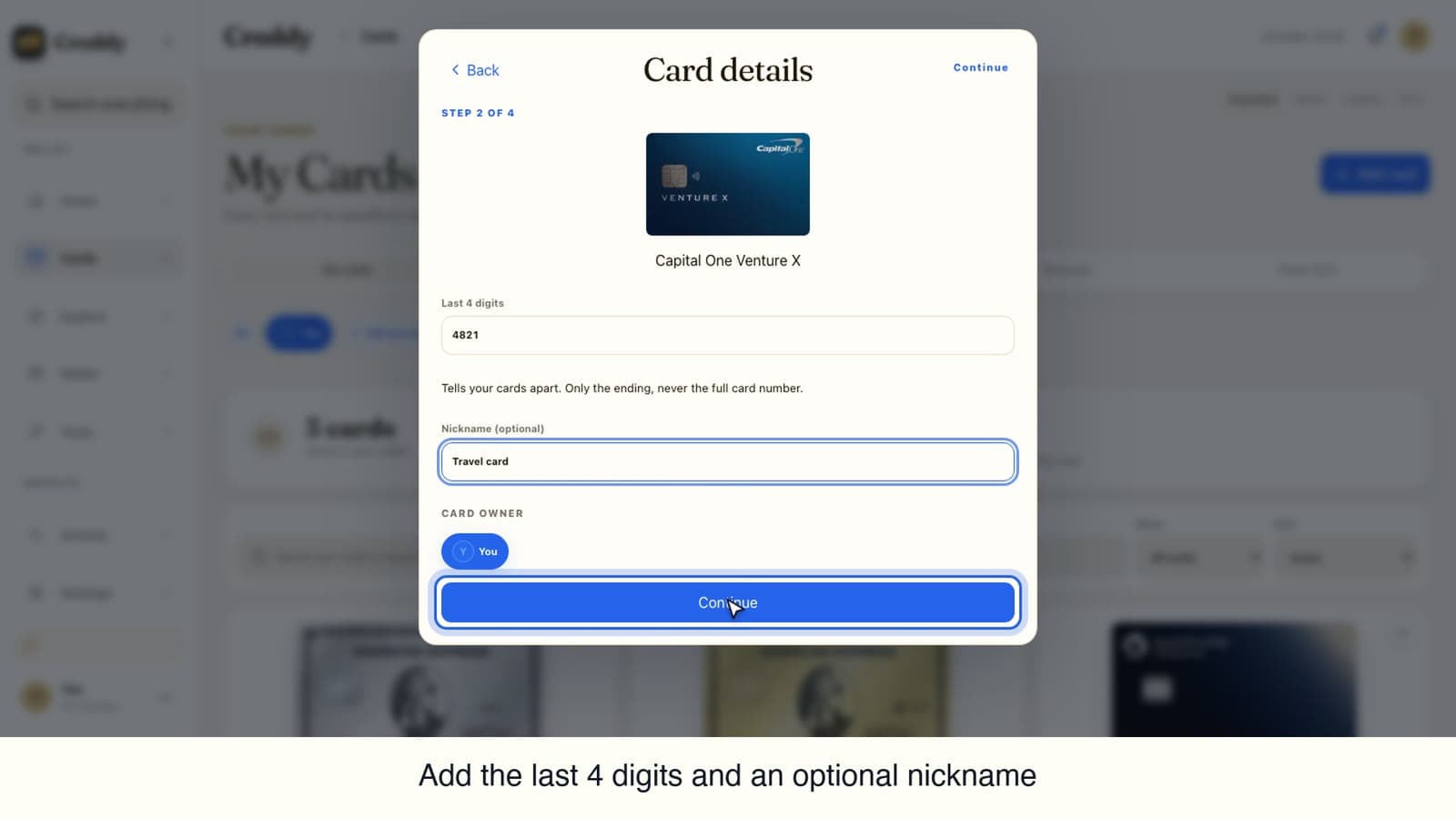
Step 3: Enter the last four digits of the card. A nickname is optional and helps tell similar cards apart.
Step 4: On the web, set your important dates, such as the date you opened the account and the card anniversary, or finish them later. Then choose what to do with the welcome bonus: track it, mark it as earned, or skip it. Click Add to my cards.
Step 5: On iPhone, add the date you opened the card if you like, mark any credits you already used this period (or tap None yet), and choose whether to get reminders.
Video transcript
How to add a credit card in Creddy. It takes less than a minute.
Open the Cards tab and click Add card.
Search for your card by name or issuer. We will look for the Capital One Venture X.
Select your card from the results.
Enter the last four digits of the card. Creddy never asks for the full number. A nickname is optional, and helps tell similar cards apart.
Next, set your important dates. The account opened date and the card anniversary keep your renewal and reset reminders accurate. You can also finish these later.
Then choose what to do with the welcome bonus. You can track your progress, mark it as earned, or skip it.
Finally, click Add to my cards.
That is it. Your card is in your wallet, ready for you to track its benefits.
Find more guides at get creddy dot com.
Video transcript
How to add a credit card in the Creddy app. It takes less than a minute.
Open the My Cards tab and tap the plus button.
Choose Add a card.
Search for your card by name or issuer. We will look for the Chase Freedom Unlimited.
Tap your card in the results, then tap Add one card. You can select several cards at once.
Enter the last four digits of the card. Creddy never asks for the full number. You can add the date you opened it, or finish these details later.
Next, mark any credits you have already used this period, so your totals start right. Or tap None yet.
Creddy can remind you before a credit runs out. Turn reminders on, or tap Not now.
That is it. Your card is in your wallet, ready for you to track its benefits.
Find more guides at get creddy dot com.
Import a spreadsheet or paste a list
If you already keep your cards in a spreadsheet, bring them over in one go. Use one row per card, with details like the last four digits and the date you opened it.
Creddy reads each row, matches it to a card and shows you the result. Nothing is saved until you add the cards, so you can review everything first.
Step 1: On the web, open the Cards tab and click Import. On iPhone, open My Cards, tap the plus button and choose Import cards.
Step 2: Choose your Excel, Numbers or CSV file. Or paste a list instead, one card per line. Use Use sample to see the format.
Step 3: Check how Creddy matched each row. Open Columns to see how each column was read and change any that look wrong.
Step 4: When everything looks right, add the cards.
Video transcript
How to import your cards from a spreadsheet by uploading a file.
Start with any spreadsheet of your cards. Use one row per card, with the details you already track, like the last four digits and the date you opened it.
Open the Cards tab and click Import.
Click Choose a file, then pick your spreadsheet and open it. Excel, Numbers and C S V files all work, or you can paste a list instead.
Creddy reads the sheet and matches every row to a card. Nothing is saved yet, so you can review it first.
Click Columns to check how each column was read. You can change any that look wrong.
When everything looks right, click Add 6 cards.
That is it. All six cards are in your wallet, with their dates and nicknames filled in.
Find more guides at get creddy dot com.
Video transcript
How to import your cards by pasting a list, with no file needed.
Open the Cards tab and click Import.
Click Paste a list. You can type your cards, or copy the rows from your spreadsheet and paste them in. One card per line works best.
Add the card name and the details you know, like the last four digits or when you opened it. To see the format, click Use sample.
Then click Continue. Creddy reads each line and matches it to a card. Nothing is saved yet, so you can review it first.
When everything looks right, click the Add button at the bottom.
That is it. Your cards are in your wallet, with their dates filled in.
Find more guides at get creddy dot com.
Video transcript
How to import your cards from a spreadsheet by picking a file.
Open the My Cards tab and tap the plus button, then choose Import cards.
Tap Import a spreadsheet, then pick your file and open it. Excel, Numbers and C S V files all work, or you can paste a list instead.
Creddy reads the sheet and matches every row to a card. Nothing is saved yet, so you can review it first.
Tap Columns to check how each column was read. You can change any that look wrong.
Tap Continue, then tap the Add button at the bottom to save your cards.
That is it. Your cards are in your wallet, with their dates filled in.
Find more guides at get creddy dot com.
Video transcript
How to import your cards by pasting a list, with no file needed.
Open the My Cards tab and tap the plus button, then choose Import cards.
Type your cards, or copy the rows from your spreadsheet and paste them in. One card per line works best, with the last four digits and your dates if you know them. Tap Use sample to see the format.
Then tap Continue. Creddy reads each line and matches it to a card. Nothing is saved yet, so you can review it first.
When everything looks right, tap the Add button at the bottom.
That is it. Your cards are in your wallet, ready for you to track their benefits.
Find more guides at get creddy dot com.
Link your bank
Linking a bank lets Creddy find the cards on your account, and it then counts your credits as they post. Access is read only and you can unlink at any time.
Creddy uses Plaid for the connection. You sign in on your bank's own page, so your bank password goes to the bank and is never seen by Plaid or Creddy.
Step 1: On the web, open the Tools menu, choose Auto-tracking and click Link a bank. On iPhone, open My Cards, tap the plus button and choose Link a bank.
Step 2: Plaid opens. Continue with or without a phone number, then search for your bank and pick it.
Step 3: Sign in on your bank's own page and allow Creddy to read your accounts.
Step 4: Keep the cards you want and untick any you do not. On the web, click Start tracking.
Video transcript
How to add your cards to Creddy by linking your bank. It takes about a minute.
Open the Tools menu and choose Auto-tracking.
Click Link a bank. Access is read only, and you can unlink at any time.
Creddy uses Plaid, a secure service that thousands of banks support. Skip the phone number if you prefer.
Search for your bank. We will use American Express.
Pick your bank from the list.
Plaid sends you to your bank's own sign in page. Your password goes to the bank. Neither Plaid nor Creddy ever sees it.
Then allow Creddy to read your accounts.
Creddy finds the cards on your account. Keep the ones you want, and untick any you do not.
Click Start tracking.
That is it. Your cards are in your wallet, and Creddy counts their credits as they post.
Find more guides at get creddy dot com.
Video transcript
How to add your cards by linking your bank in the Creddy app.
Open the My Cards tab and tap the plus button.
Choose Link a bank. Linking a bank is included with Creddy Pro.
Creddy only reads your card activity. It cannot move money, and it never sees your bank password. Tap Link a bank.
Plaid handles the connection. Enter your phone number, or continue without it.
Search for your bank or card issuer. We will look for American Express.
Tap your bank in the results, then choose the one that matches your account.
Tap Continue to log in. Your bank's own sign-in page opens. Sign in there, and Creddy then finds the cards on that account, so you choose which ones to add to your wallet.
Find more guides at get creddy dot com.
Why this matters
Credits and benefits only help if you remember to use them. Once your cards are in the wallet, Creddy can show what each one offers, remind you before a credit runs out and keep your totals right.