If your cards already live in a spreadsheet, you do not have to add them one by one. Creddy can read the sheet and add them all at once.
You can upload a file, or copy the rows and paste them in as a list. Both end at the same review screen, where nothing is saved until you say so.
Creddy never asks for a full card number. The last four digits are enough.
Upload a file
Use one row per card. Details such as the last four digits and the date you opened the card help Creddy fill in your wallet, but the card name is the part that matters most.
Creddy reads the sheet and matches every row to a card. You review the matches before you add anything.
Step 1: On the web, open the Cards tab and click Import. On iPhone, open My Cards, tap the plus button and choose Import cards, then tap Import a spreadsheet.
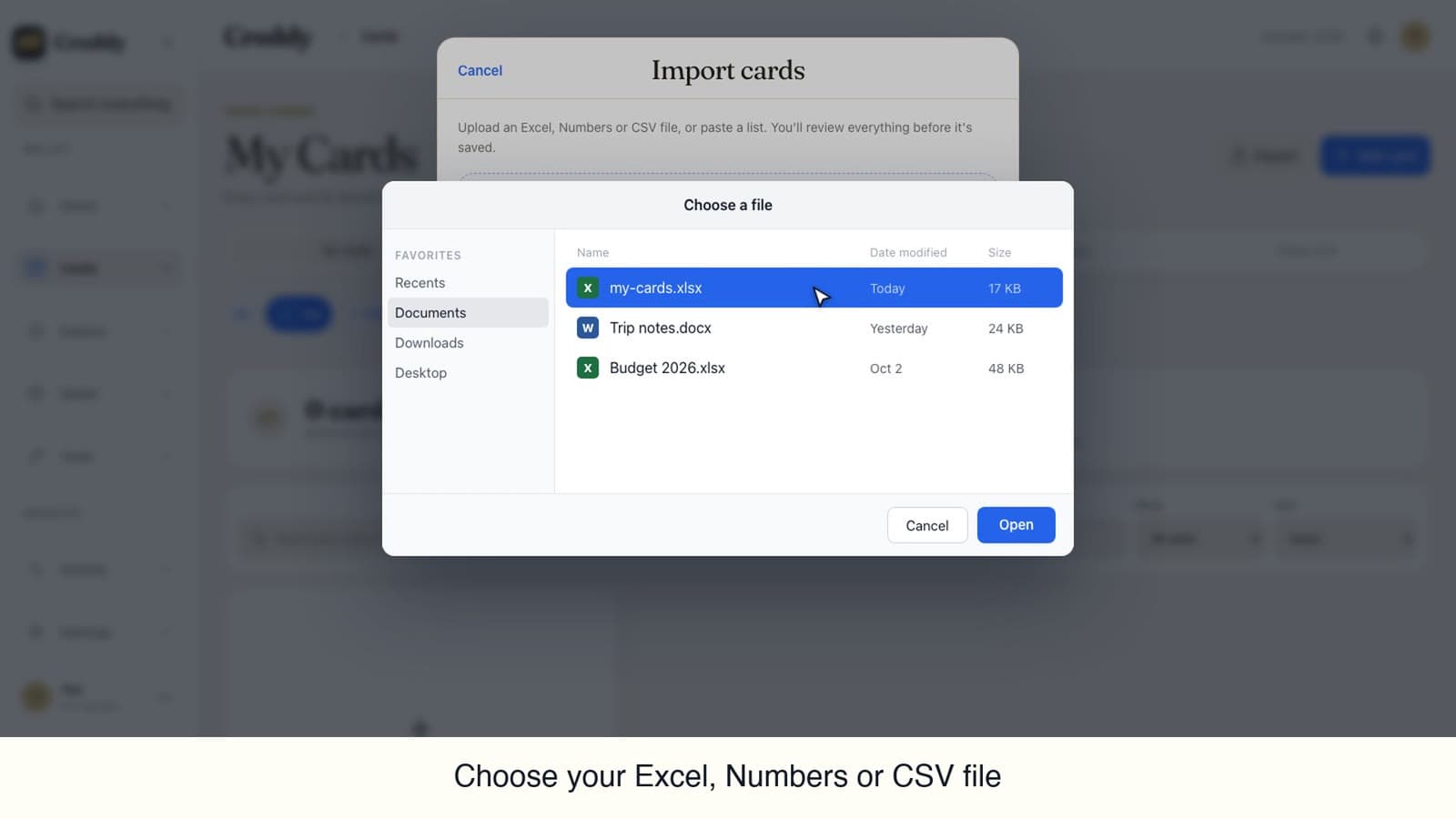
Step 2: Choose your Excel, Numbers or CSV file.
Step 3: Check how Creddy matched each row. Open Columns to see how each column was read and change any that look wrong.
Step 4: When everything looks right, add the cards.
Video transcript
How to import your cards from a spreadsheet by uploading a file.
Start with any spreadsheet of your cards. Use one row per card, with the details you already track, like the last four digits and the date you opened it.
Open the Cards tab and click Import.
Click Choose a file, then pick your spreadsheet and open it. Excel, Numbers and C S V files all work, or you can paste a list instead.
Creddy reads the sheet and matches every row to a card. Nothing is saved yet, so you can review it first.
Click Columns to check how each column was read. You can change any that look wrong.
When everything looks right, click Add 6 cards.
That is it. All six cards are in your wallet, with their dates and nicknames filled in.
Find more guides at get creddy dot com.
Video transcript
How to import your cards from a spreadsheet by picking a file.
Open the My Cards tab and tap the plus button, then choose Import cards.
Tap Import a spreadsheet, then pick your file and open it. Excel, Numbers and C S V files all work, or you can paste a list instead.
Creddy reads the sheet and matches every row to a card. Nothing is saved yet, so you can review it first.
Tap Columns to check how each column was read. You can change any that look wrong.
Tap Continue, then tap the Add button at the bottom to save your cards.
That is it. Your cards are in your wallet, with their dates filled in.
Find more guides at get creddy dot com.
Paste a list
No file handy? Type your cards or copy the rows from your spreadsheet and paste them in. One card per line works best.
Add the card name and any details you know, like the last four digits or when you opened it.
Step 1: On the web, open the Cards tab, click Import and click Paste a list. On iPhone, open My Cards, tap the plus button and choose Import cards.
Step 2: Type or paste your cards, one per line. Use Use sample to see the format.
Step 3: Click or tap Continue and review the matches.
Step 4: When everything looks right, add the cards.
Video transcript
How to import your cards by pasting a list, with no file needed.
Open the Cards tab and click Import.
Click Paste a list. You can type your cards, or copy the rows from your spreadsheet and paste them in. One card per line works best.
Add the card name and the details you know, like the last four digits or when you opened it. To see the format, click Use sample.
Then click Continue. Creddy reads each line and matches it to a card. Nothing is saved yet, so you can review it first.
When everything looks right, click the Add button at the bottom.
That is it. Your cards are in your wallet, with their dates filled in.
Find more guides at get creddy dot com.
Video transcript
How to import your cards by pasting a list, with no file needed.
Open the My Cards tab and tap the plus button, then choose Import cards.
Type your cards, or copy the rows from your spreadsheet and paste them in. One card per line works best, with the last four digits and your dates if you know them. Tap Use sample to see the format.
Then tap Continue. Creddy reads each line and matches it to a card. Nothing is saved yet, so you can review it first.
When everything looks right, tap the Add button at the bottom.
That is it. Your cards are in your wallet, ready for you to track their benefits.
Find more guides at get creddy dot com.
Why this matters
Credits and benefits only help if you remember to use them. Once your cards are in the wallet, Creddy can show what each one offers and remind you before a credit runs out.